On-set monitoring

FrameDir
Watch multiple cameras. Keep the moments that matter.
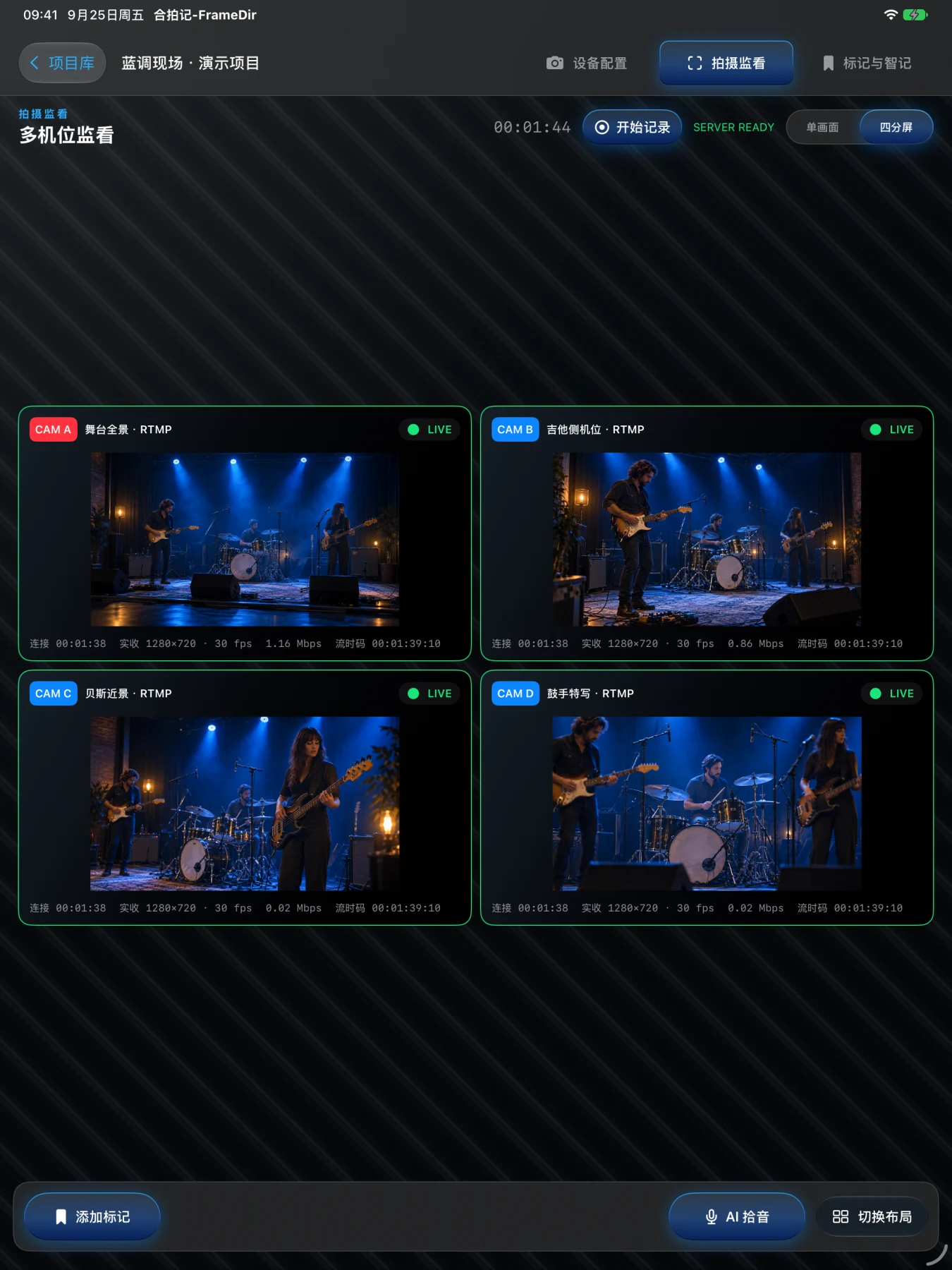
Monitor up to four camera feeds per project, save marked stills and short clips, and turn speech into on-device notes.
1. Introduction
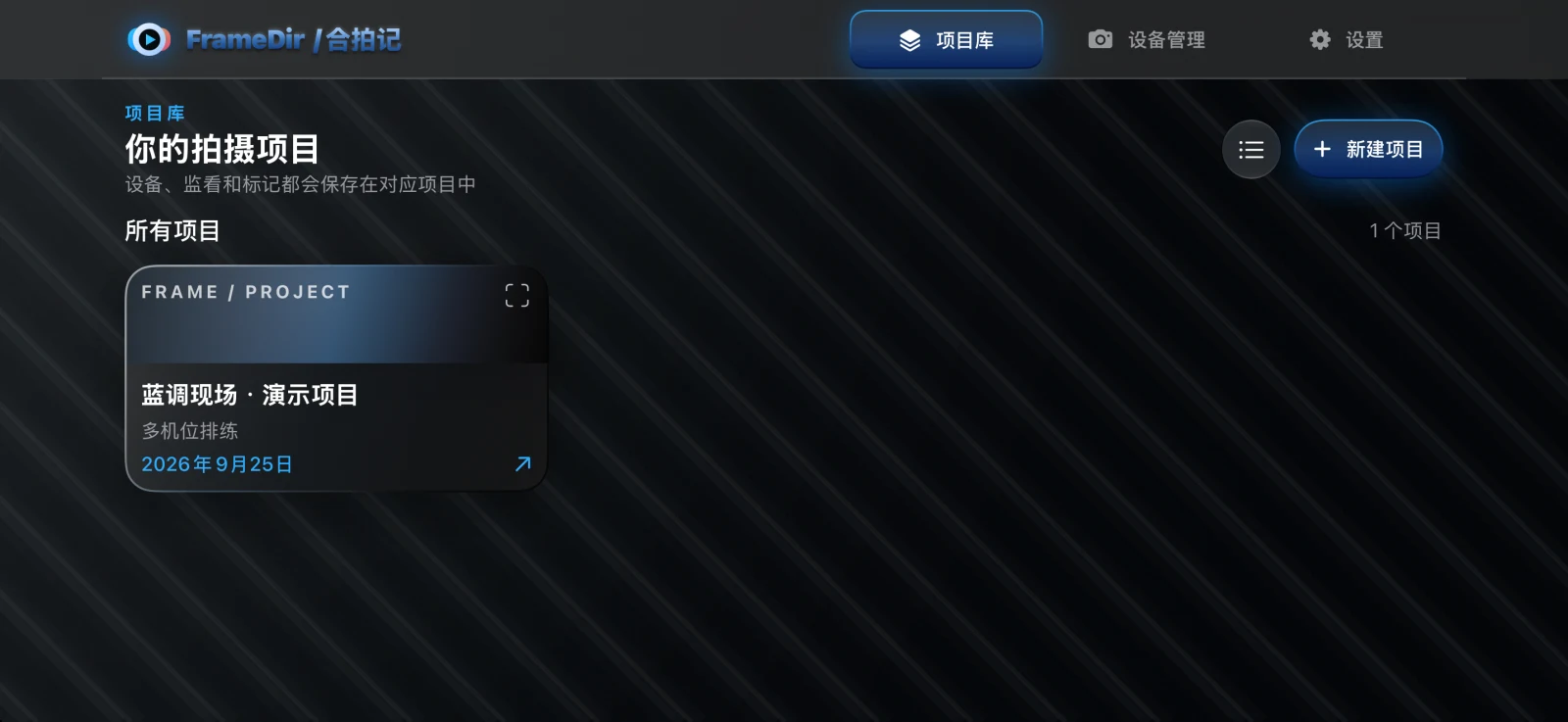
FrameDir is an independent multi-camera monitoring and moment-logging tool for iPhone and iPad. Keep camera positions, feeds, marks and on-set notes organized by project.
- Organize up to four camera positions and switch between a single view and a grid.
- Configure standard RTMP sources manually, or connect and preview supported cameras in the app.
- Tap Mark to save stills and short clips around that moment from positions receiving video.
- Revisit marks on a timeline and use on-device speech transcription for project notes.
Public version 1.0 requires iOS / iPadOS 26 or later. Compatibility and quality depend on camera model, firmware, device and local network. FrameDir is independently developed and is not affiliated with, sponsored by or endorsed by camera manufacturers.
2. Detailed instructions
1. Create a project and camera positions
Create a project and give it a name. Add positions to match the set, starting with a small number to confirm the feeds before adding up to four. Use recognizable position names.
2. Connect video
Put the phone, tablet and cameras on a network where they can communicate. Configure an RTMP source manually or use the supported-camera connection flow. Allow local-network access; camera discovery or connection may also use Bluetooth. Support for one model does not imply every camera from the manufacturer is supported.
Check RTMP addresses and stream settings. Addresses may contain stream keys: do not publicly share them or screenshots exposing them. If video is missing, check the network, camera output and app permissions first.
3. Monitor and mark
Switch between a single feed and the grid. Tap Mark at an important moment to save stills and short clips from positions receiving video. Clips depend on received streams and short-term buffering. They are not a full continuous recording and cannot restore video that was never received.
4. Use speech notes
Enable speech notes when needed and allow microphone access. Apple's system services transcribe on the device; local language resources may need downloading first. Recognized text can be saved as project notes according to your settings. Review recognition in noisy environments.
5. Review, share and clean up
Browse marks, stills and clips in the project timeline. Before exporting, check camera names, set information and RTMP addresses for sensitive details. Deleting a mark also deletes its associated stills and clips. Manage exported copies separately.
Screenshots
Images are actual development-build iPhone / iPad simulator captures. Projects and stage footage are purpose-made examples, not client records or proof of compatibility with every camera. Check the App Store release.
Screenshots
AILIFE LAB
Get the app
Information checked · 2026-10-23