Network utility

WiFiSentinel
Keep an eye on Wi-Fi from the menu bar.
Check Wi-Fi association, local connectivity and external responses, then attempt recovery only after you confirm the risks.
1. Introduction
This text was written entirely by CODEX.
WiFiSentinel is an AI-assisted Mac menu-bar utility. When Wi-Fi appears connected but websites will not load, it helps distinguish connection problems from internet reachability.
- Check Wi-Fi association, the local network and two external targets separately.
- See conclusions, fault rechecks and automatic/manual recovery counts.
- Check every 60 seconds by default, adjust the interval and targets, and inspect or export bounded anomaly logs.
- Automatic recovery starts disabled on every launch. It requires your confirmation and enters cooldown after repeated failures.
Public version 0.1 / build 5.3 provides an Apple silicon (arm64) installer only, with no Intel package. Its minimum build target is macOS 13; existing checks used macOS 27.0.1 and earlier systems have not been verified on hardware. It cannot boost wireless signal or guarantee recovery from every fault.
2. Detailed instructions
1. Install
Download the DMG and SHA-256 file, verify them, then drag the app to Applications. The official package is Developer ID signed and Apple notarized. Check its origin in the standard first-open prompt.
2. Observe first
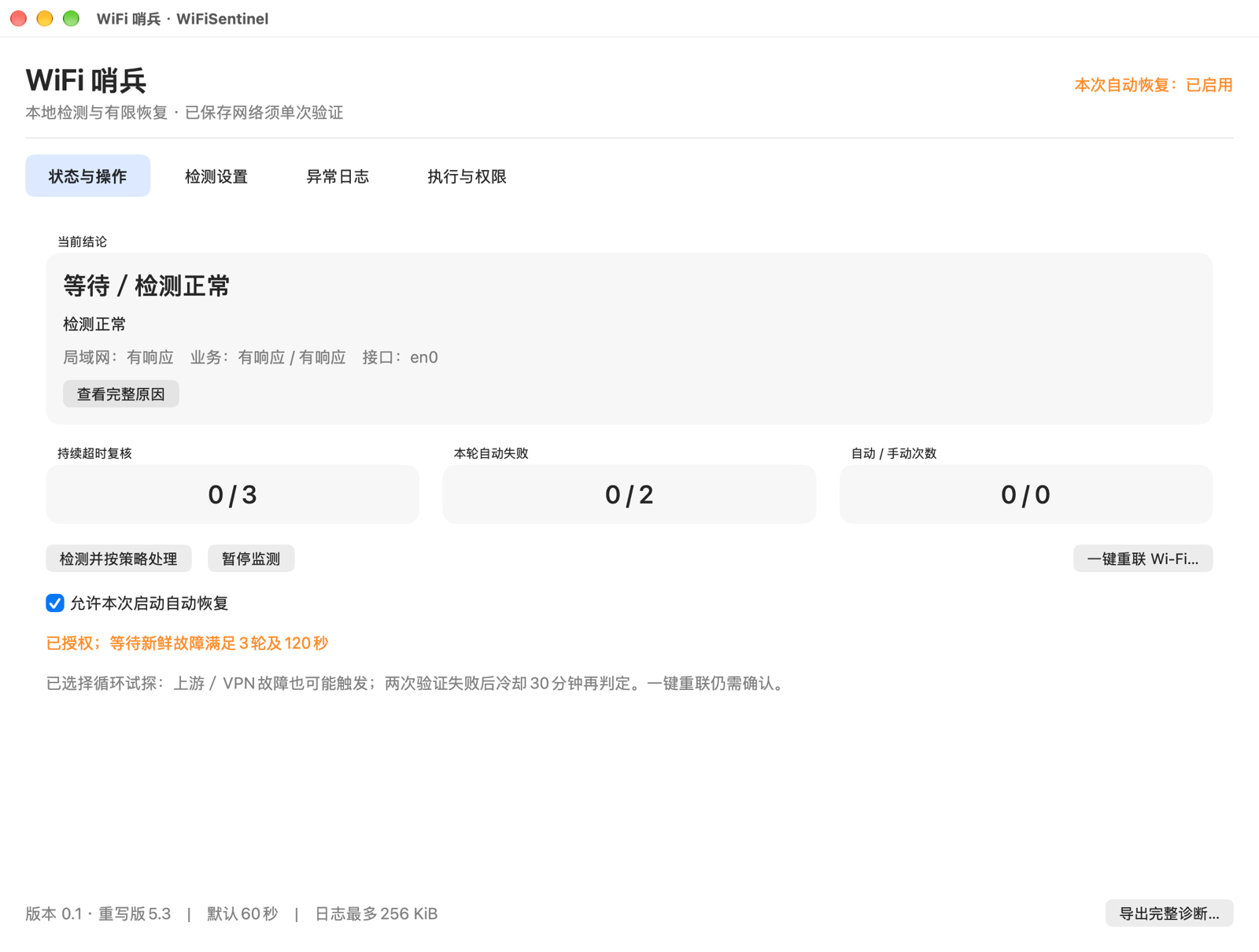
Open Status and Actions from the eyes-and-Wi-Fi menu-bar icon. Review the conclusion and local/external responses. The menu-bar icon reopens the window after closing it. Monitoring and anomaly logs work with automatic recovery disabled.
3. Set up probes
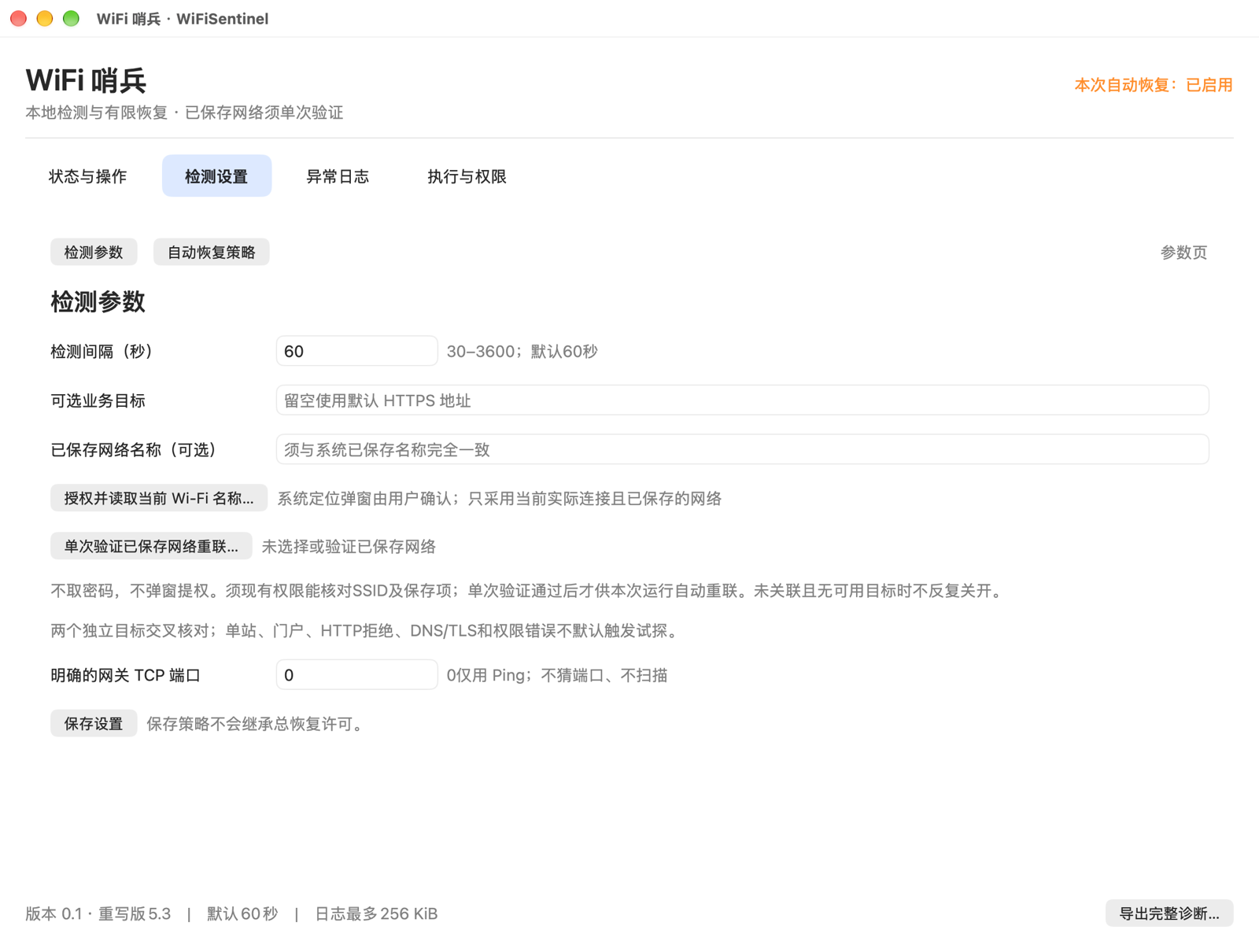
Change the interval or custom business URL in Detection Settings and save. Default targets are Apple and Cloudflare. Before using a different URL, make sure periodic requests are appropriate. Saved-network names and gateway ports are optional.
macOS may request location permission to read the current Wi-Fi name. The app does not read location coordinates or Wi-Fi passwords. Denial can limit network verification and reconnection; follow the displayed guidance.
4. Choose recovery behavior
If needed, enable automatic recovery for this launch and read the confirmation. A new launch requires confirmation again. The default conservative policy does not cycle Wi-Fi solely for an external failure when the LAN is healthy. The internet-failure recovery policy may act after both external targets repeatedly time out despite a working LAN.
Both policies require at least three qualifying checks and 120 seconds of persistent failure. Two failed automatic recovery validations lead to a 30-minute awake-time cooldown. Detect and process by policy may also recover when automatic recovery is enabled. Leave the master switch off for observation only.
Manual reconnect also asks for confirmation. Automatic or manual recovery may briefly cycle Wi-Fi and interrupt meetings, downloads, SSH or VPN. Use monitoring only when interruptions are unacceptable.
5. Diagnose, update and remove
Check Anomaly Log and Execution and Permissions. Remove SSIDs, addresses, usernames and private paths before sharing exports. Actual outage recovery, specified-network reconnection and -3900 cases remain insufficiently verified. Signing and notarization do not validate network recovery.
Quit normally before updating or rolling back and keep a copy of the old app. If Wi-Fi re-enabling is unconfirmed, check the system menu first. Before uninstalling, ensure no recovery transaction remains unfinished. Settings and logs live at ~/Library/Application Support/WiFiSentinel/; back up or remove them after normal shutdown as needed.
Full instructions · Installation and rollback · Validation limits. The project uses MIT. Screenshots show real operation; automatic recovery is on in the image but off on a new launch.
Screenshots
AILIFE LAB
Get the app
Information checked · 2026-10-23