Nearby communication
RidgeCall
Team up nearby. Hold to talk.
Create an approved nearby community and share voice, text, photos and two-second silent clips without an account.
1. Introduction
RidgeCall is a nearby communication app for iPhone and iPad. Form a community with people around you, hold to send voice and release to stop.
- Discover and invite nearby devices. Joining requires approval, with identity codes you can compare in person.
- Share text, photos and two-second silent clips, and check transfer results.
- View members, mute incoming audio and rename a community. Founding administrators can remove members.
- Keep a foreground session screen open with talk and exit controls.
Requires iOS / iPadOS 17 or later and RidgeCall on each participating device. Version 1.0 is preparing for release; no verified public download is available. Connectivity depends on distance, obstacles, devices and system conditions. It is not emergency communication equipment and does not promise a fixed range or continuous background connectivity.
2. Detailed instructions
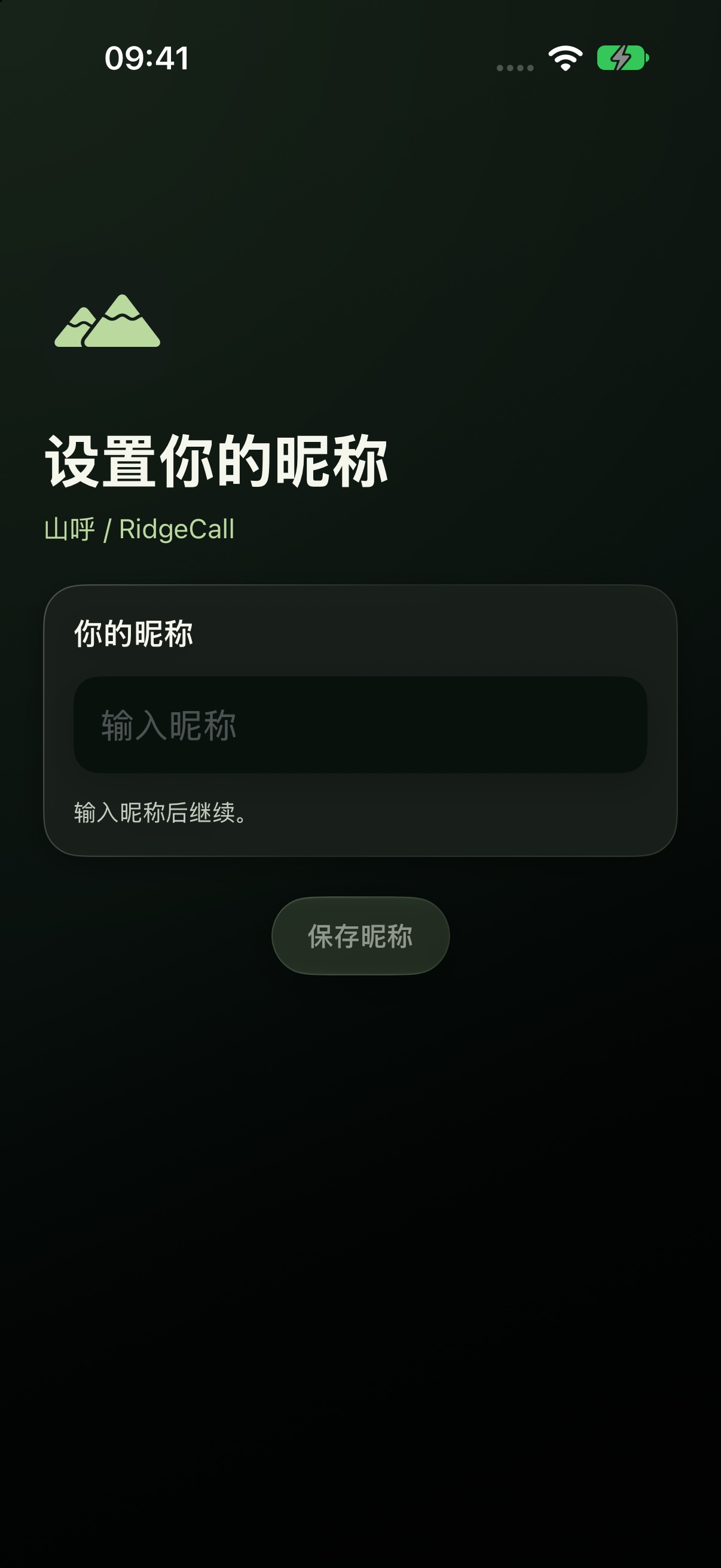
1. Choose a nickname
Enter a nickname on first launch. Your nickname and public device identity participate in nearby discovery, so avoid information you do not want people nearby to see.
2. Enable nearby connections
Keep Wi-Fi and nearby connections enabled on both devices and allow local-network access. For an initial troubleshooting test, use the same Wi-Fi LAN with both apps in the foreground. No cloud server does not mean communication works in every environment.
3. Invite and verify
Invite a nearby device. Compare the applicant's identity code with the code shown in its Settings in person before approving it. A nickname alone is not proof of identity.
4. Hold to talk
Open Intercom, allow the microphone when needed, hold the talk button to send and release to stop. Use mute to silence incoming audio. Keep the app in the foreground: Keep Session does not guarantee background or locked-screen connectivity.
5. Send text and media
Use the message composer to enter text, select photos or capture a photo or two-second silent clip. The system photo picker provides only selected items; camera permission is requested for capture. Check the transfer result rather than assuming a completed action means delivery.
6. Leave and clear history
Review members and manage names or removals according to your permissions. Turn off nearby connections, leave a community or clear local message history in Settings. Leaving clears saved community credentials. Other recipients may keep copies, and Keychain device identity may survive app removal.
Current release and images
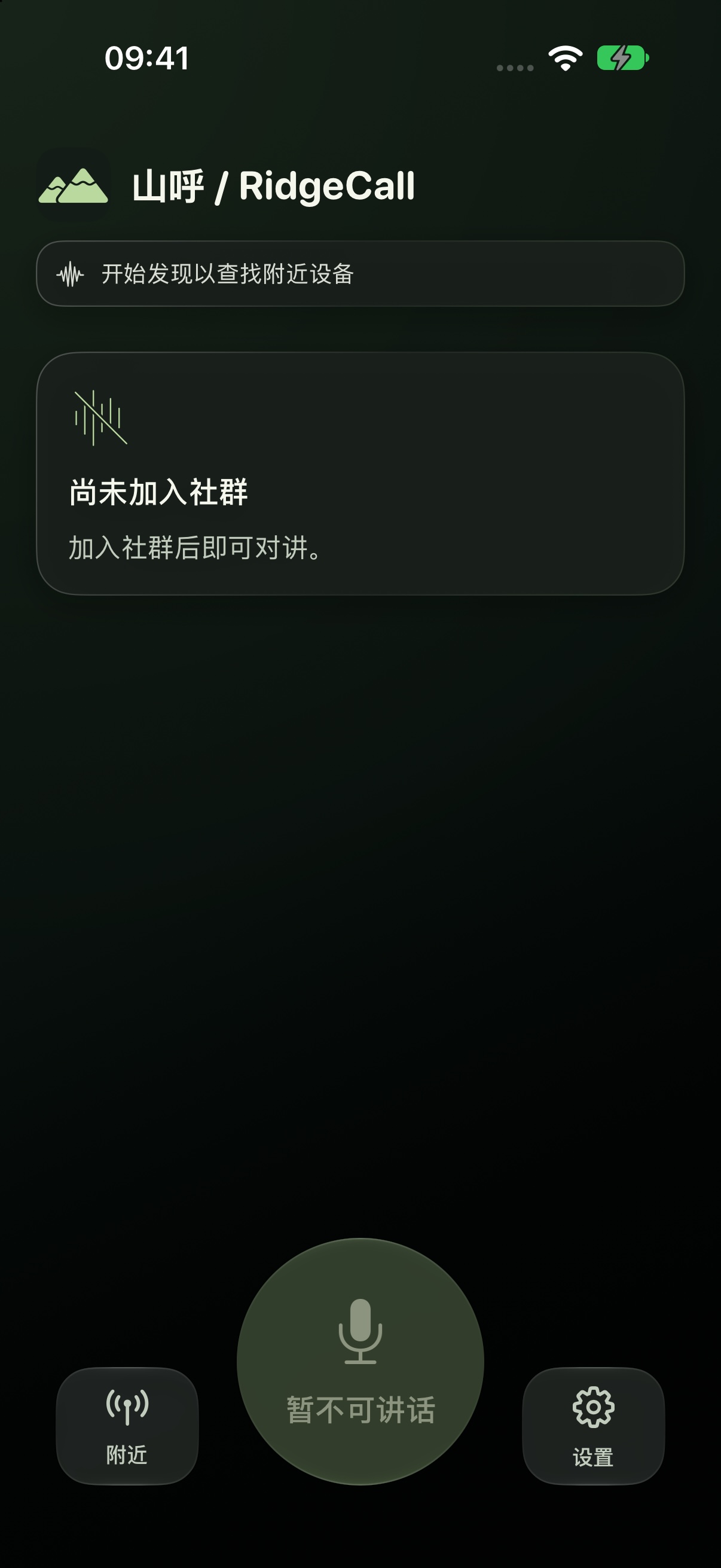
Screenshots show actual 1.0 release-configuration simulator empty states and nickname setup. They do not invent connected peers or verify wireless performance. A download link will be added when publicly available.
Screenshots
AILIFE LAB
Get the app
Information checked · 2026-10-23