Writing and listening review

Ink Engine
Write it down. Listen to it back.
Edit on Mac, read on iPhone and iPad, and use local voices to spot repetition and awkward passages.
1. Introduction
Ink Engine brings text editing, reading and offline speech together. Listen after writing to help notice repetition, long sentences and awkward phrasing.
- Open and edit original local files on Mac; manage and read local documents and folders on iPhone / iPad.
- Work with plain text, Markdown and common code/data text formats, using chapters, bookmarks and reading-position recovery.
- Use system speech or bundled ZipVoice Serena / Dylan voices, with per-model speed settings and custom pronunciation corrections.
- Move documents through system sharing, import or user-initiated nearby-device sync without a cloud account.
- Version 0.3.2 adds Simplified Chinese, Traditional Chinese, English and system-following interface language options.
The public 0.3.2 (build 8) Mac installer supports Apple silicon and macOS 26+, with Developer ID signing and Apple notarization. The project also supports iPhone / iPad on iOS / iPadOS 26+, but is not on the App Store and has no public generally signed IPA. Original source uses the MIT License; third-party components retain their licenses.
2. Detailed instructions
1. Install and open
Download the Mac DMG and SHA-256 file from GitHub Releases. Verify them, open the DMG and drag the app to Applications. Quit the previous version before updating and back up important documents. Installing on iPhone / iPad yourself requires your own developer signing and provisioning; the author's signing materials are not provided.
2. Open, edit and save
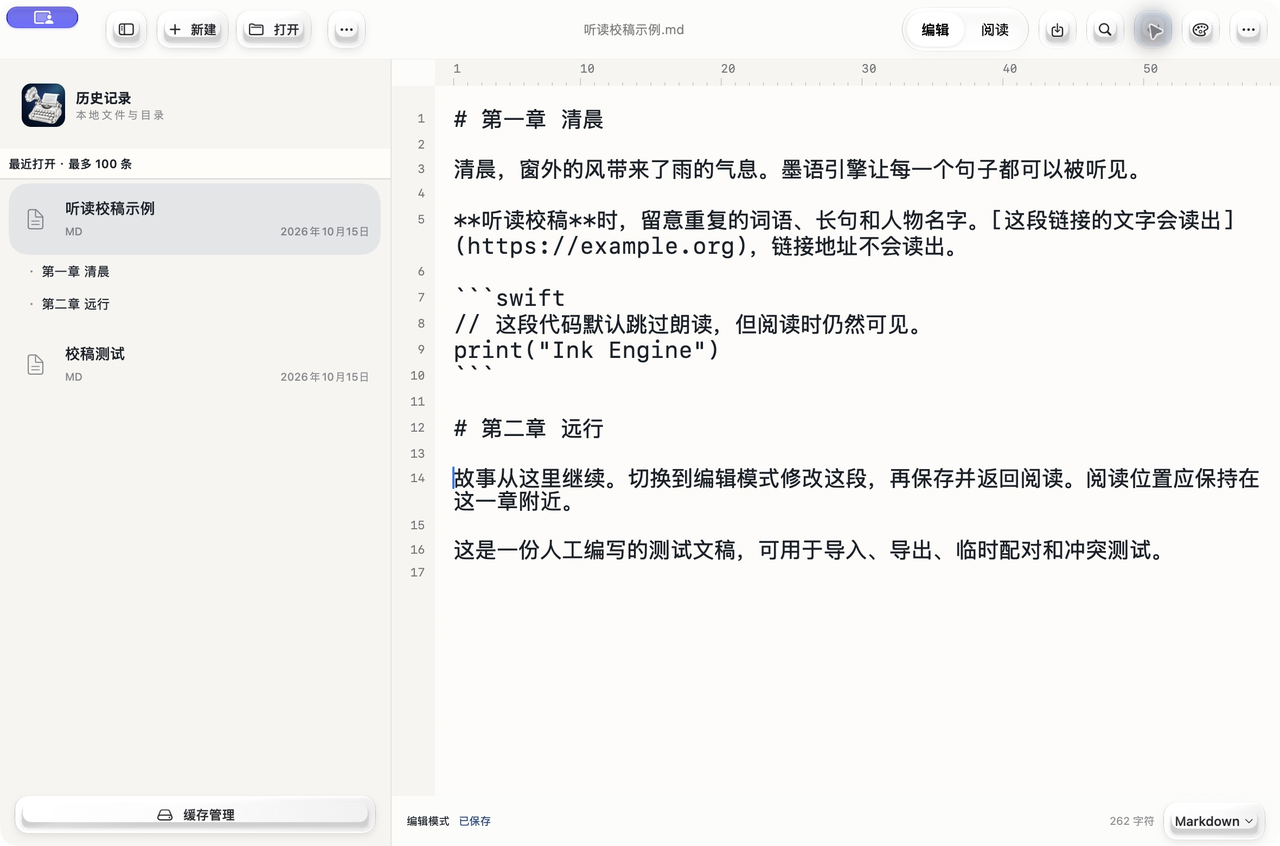
On Mac choose Open (⌘O) or New (⌘N), edit the document, then Save (⌘S) or Save As. On mobile, enter through local documents, history or import. Back up originals before editing; history is not an independent backup.
3. Listen
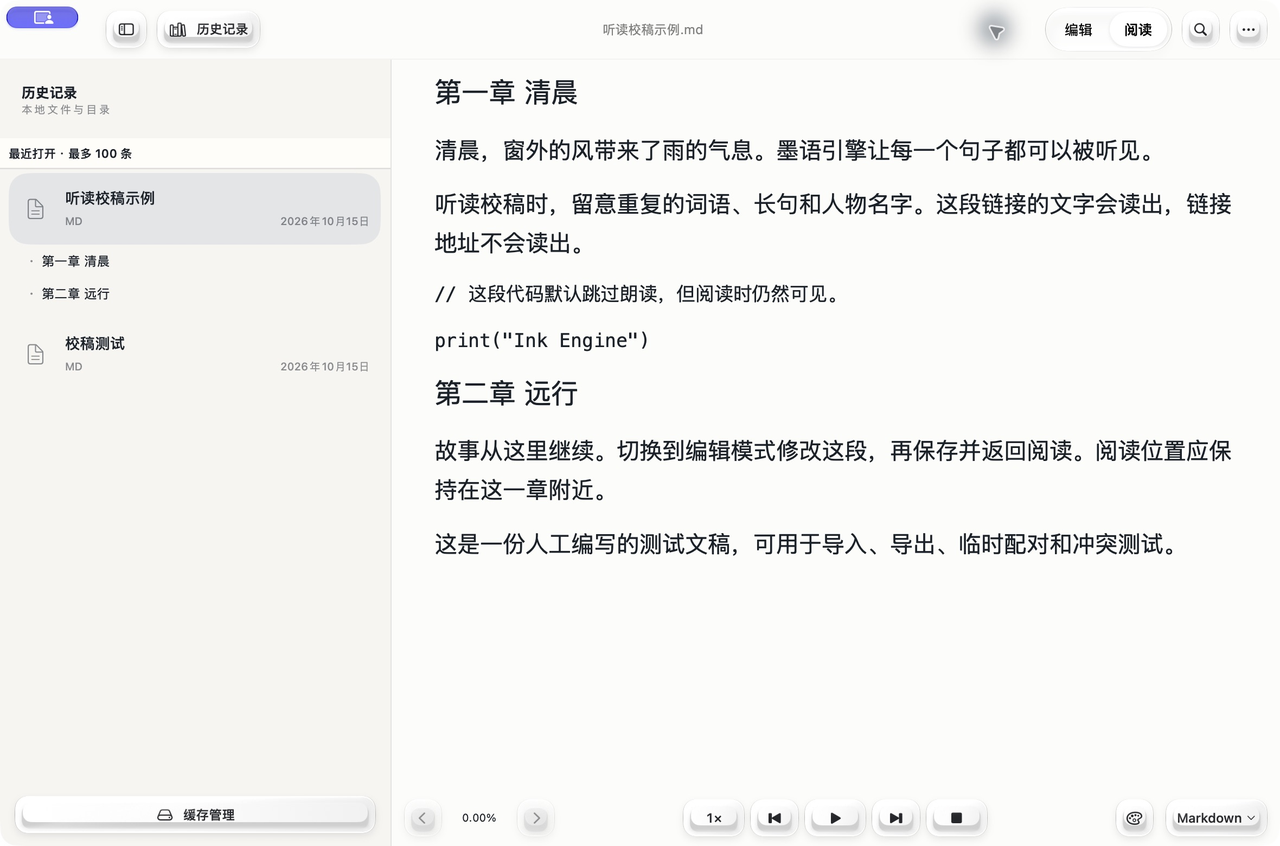
Switch to reading mode and press the bottom play button; press again to pause. Tap a line to start there. Use paragraph navigation and speed controls to review longer writing. Confirm the active document before playback, and check generated speech yourself.
4. Choose a voice and correct pronunciation
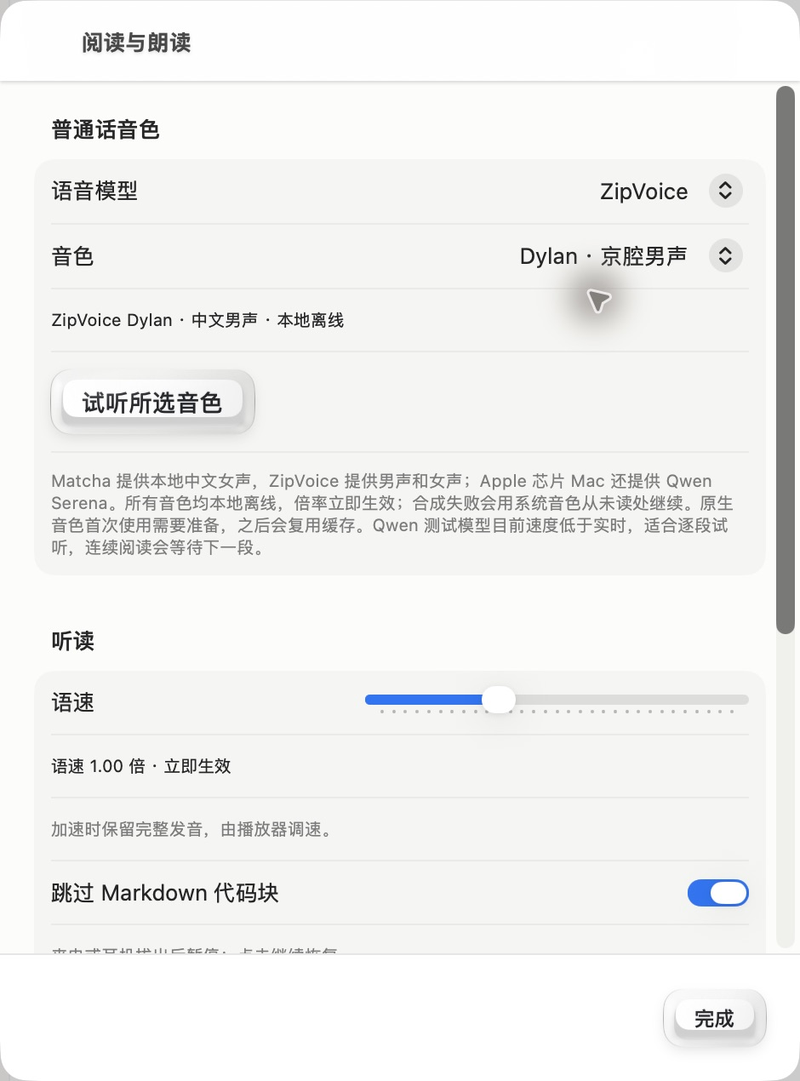
Open More → Font and Speech Settings, choose a model, then a voice belonging to that model. ZipVoice includes Serena and Dylan; system speech uses installed voices. Add names and place names to pronunciation corrections when needed.
Mac also includes an experimental Qwen 0.6B Serena model. Its initial playback rate is 1.25× and synthesis remains slower than real time, so long continuous reading may wait. It is an on-device experiment, not a real-time playback guarantee.
5. Language, bookmarks and sync
Choose system, Simplified Chinese, Traditional Chinese or English in More → Language or the speech settings; Mac also has a Language menu. Switching preserves documents, reading position and voice selection. Use reading bookmarks for passages to revisit.
Start nearby-device sync yourself, allow local-network access, compare pairing codes on both ends and confirm before choosing items. Pair only with trusted devices. Revoking trust does not delete documents already transferred. System sharing and import are alternatives.
6. Clean up and understand version scope
Removing a history entry may not delete the original file. Mac cache cleanup can permanently remove private unsaved documents in the selected scope that are not saved externally or referenced by a folder; the active document is retained. Save what you need before cleaning.
These instructions describe public 0.3.2 (8). Images remain explicitly labeled Mac 0.3.1. Source-only tabs, split views, multiple windows and the manual-save workspace are not included in the existing public installer. Full project documentation.
Screenshots
AILIFE LAB
Get the app
Information checked · 2026-10-23